MCP 伺服器中的提示讓您能夠定義預先建立、高品質的指令,客戶端可以直接使用這些指令,而不需要從頭撰寫自己的提示。您可以將它們視為精心製作的範本,能提供比使用者自行想出的內容更好的結果。
為什麼要使用提示?
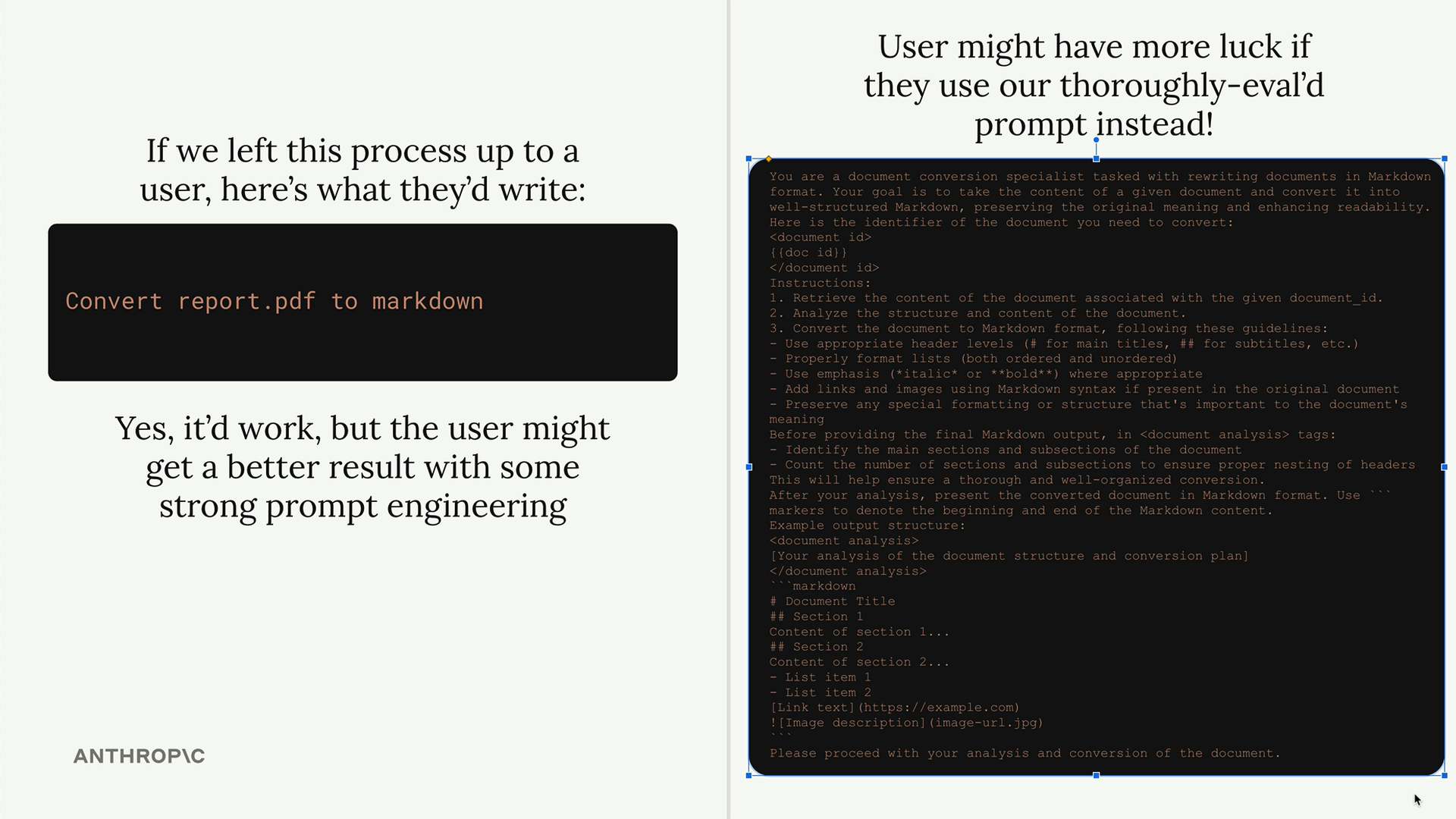
假設您想讓 Claude 將文件重新格式化為 markdown。使用者可以直接輸入「convert report.pdf to markdown」並獲得不錯的結果。但如果他們使用您專門為文件格式化設計的、經過充分測試的專業提示,他們很可能會獲得更好的輸出結果。
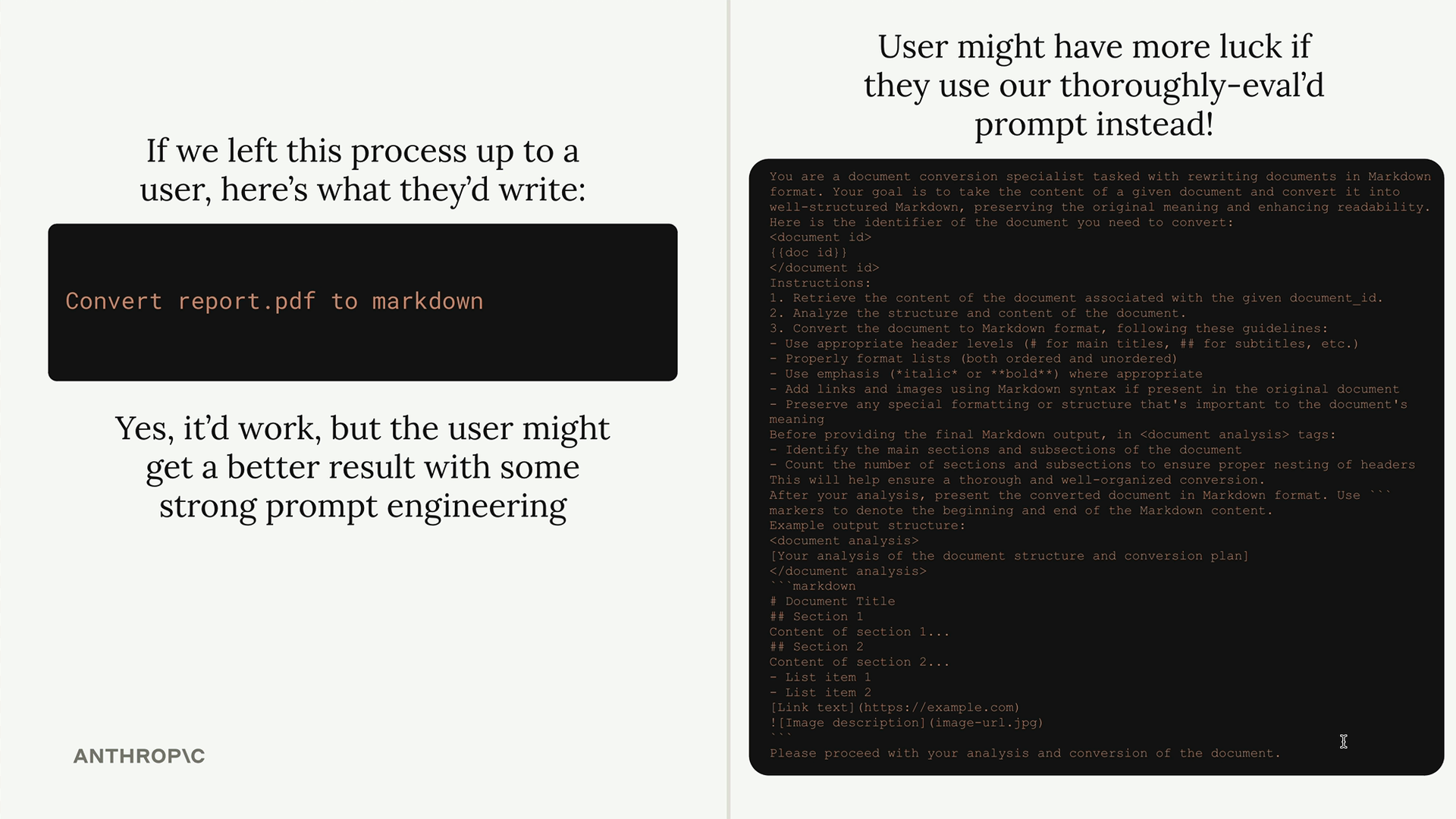
關鍵的洞察在於,雖然使用者可以自行完成這些任務,但當他們使用由 MCP 伺服器作者精心設計並測試過的提示時,將會獲得更優異的結果。
提示如何運作
提示定義了一組使用者和助手訊息,客戶端可以直接使用這些訊息。當客戶端請求一個提示時,您的伺服器會回傳一份訊息清單,這些訊息可以直接傳送給 Claude。
基本結構如下所示:
python
@mcp.prompt(
    name="format",
    description="Rewrites the contents of a document in Markdown format",
)
def format_document(
    doc_id: str = Field(description="Id of the document to format"),
) -> list[base.Message]:
    # 回傳訊息清單
建立格式化指令
這裡有一個實際的範例。我們將建立一個格式化指令,讓使用者可以輸入 /format doc_id 來將任何文件重新格式化為 markdown 語法。
此提示的實作包含給 Claude 的詳細指示:
python
def format_document(
    doc_id: str = Field(description="Id of the document to format"),
) -> list[base.Message]:
    prompt = f"""
Your goal is to reformat a document to be written with markdown syntax.

The id of the document you need to reformat is:

{doc_id}


Add in headers, bullet points, tables, etc as necessary. Feel free to add in structure.
Use the 'edit_document' tool to edit the document. After the document has been reformatted...
"""

    return [
        base.UserMessage(prompt)
    ]
測試您的提示
您可以使用 MCP Inspector 來測試提示。導覽至 Prompts 分頁,選擇您的提示,並提供任何必要的參數。
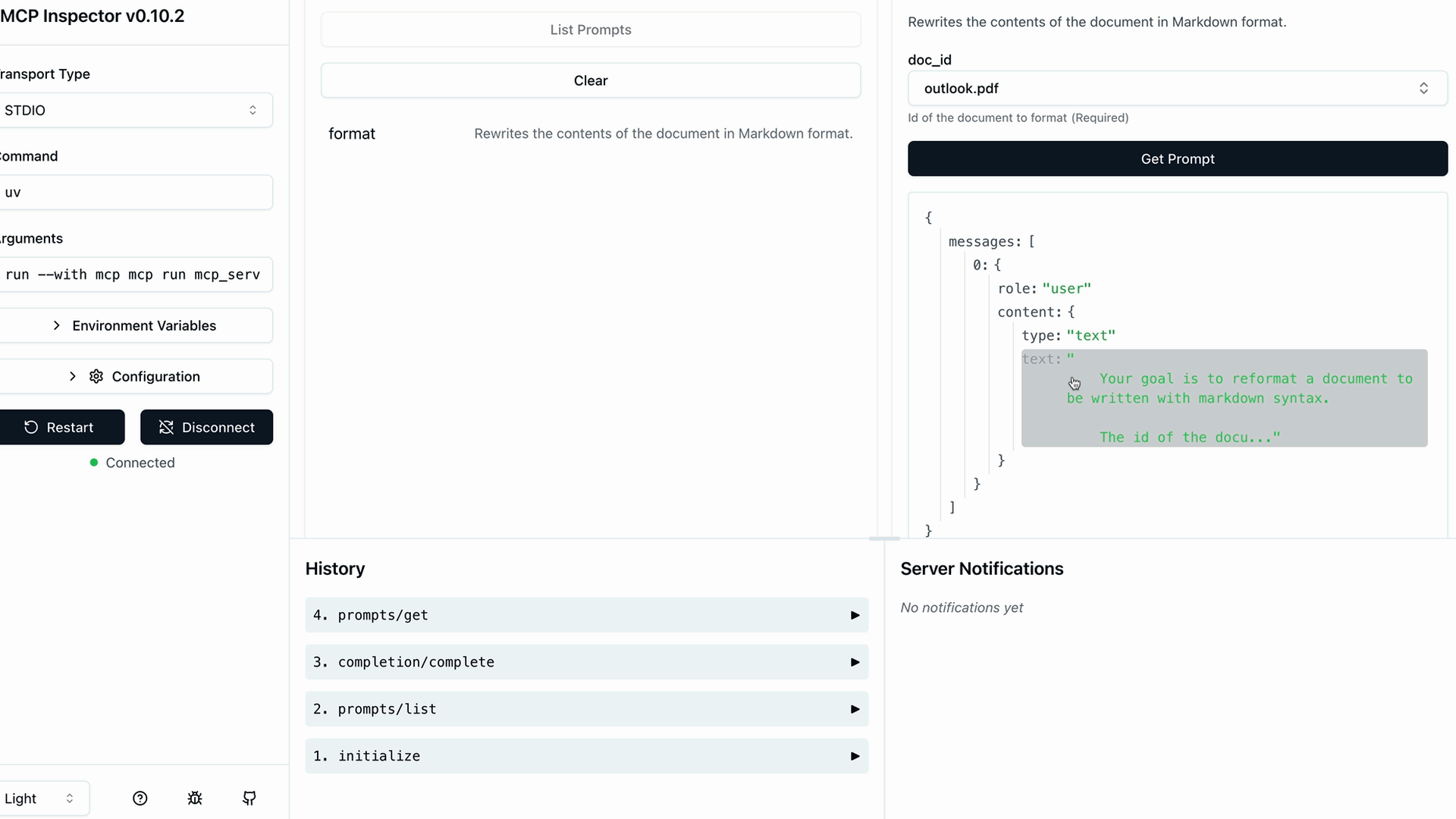
Inspector 會準確顯示將傳送給 Claude 的訊息內容,包括任何參數如何被插入到提示文字中。
主要優點
- 品質控管 - 您可以在使用者看到提示之前先進行測試與改進
- 一致性 - 使用者每次都能獲得可靠的結果
- 專業化 - 提示可以針對您伺服器的特定領域進行客製化
- 可重複使用性 - 多個客戶端可以使用相同的精心製作的提示
實作細節
別忘了匯入訊息類型所需的基礎模組:
python
from mcp.server.fastmcp import FastMCP
from mcp.server.fastmcp.prompts import base
提示應該是高品質、經過充分測試,並且與您 MCP 伺服器的整體用途相關。在我們的文件管理範例中,格式化提示非常合理,因為該伺服器專門處理文件操作。