Set up
Try a plugin
The Finance plugin ships with /financial-statements and other planning skills as a starting point, already structured to roll a driver model forward and lay out scenarios. If your admin manages plugins and it's not available yet, skip this; nothing below requires it.
Connect your tools
Claude Cowork is more powerful when it works directly with your systems. You control permissions and access. Learn about tool access(opens in new tab).
Navigate to Customize → Connectors in Cowork to set up.


Set your working folder
Drag the files you'll use (the driver model, last quarter's assumptions memo, the headcount plan) into one folder on your machine, then point Cowork at it. Cowork reads from it and writes the extended model, scenario tabs, and memo back to it. If you'll re-forecast every month, create a Cowork project(opens in new tab) from that folder so the model, memory, and scheduled runs stay attached.
The prompt
Copy this into Claude Cowork
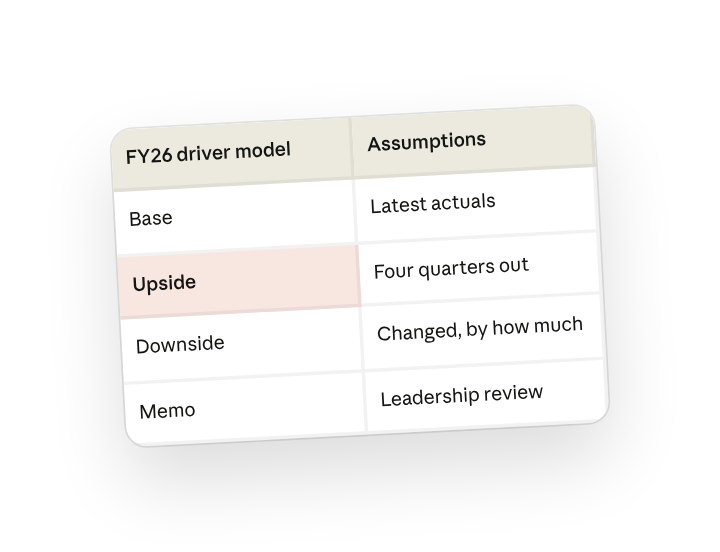
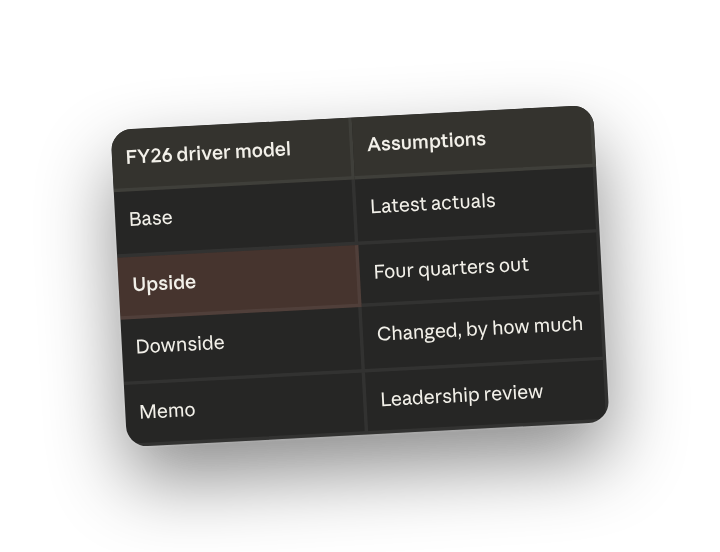
Pull the latest actuals into the driver model, extend it through the next four quarters, and run base, upside, and downside scenarios. For each scenario list the assumptions you changed and by how much, then write a one-page memo explaining what drives the difference between them in plain English for the leadership review.
Why this works
Start from the source data. "Pull the latest actuals into the driver model" rebases the forecast on what just closed, so every scenario starts from the same true-up and the planning cycle isn't waiting on a manual roll-forward.
Name the scenarios. Calling for base, upside, and downside in one run keeps the three cases on the same driver tree, so the only thing that differs is the assumptions you can defend.
Ask it to list its assumptions. "List the assumptions you changed and by how much" produces the audit trail leadership asks for first; the memo explains the why, the log shows the what.
Keep source files in the working folder. The driver model and prior memo sit in the working folder (or Sheets, if connected), so the new periods and scenario tabs write back as working formulas next to the original.
Get a better draft
Add an example to match. Drop an example you like into the folder and Cowork matches your structure and voice.
Ask it to flag uncertainty. Add "flag anything you're not confident about" so you know where to look first when you review the draft.
Make Cowork work for you
A plugin skill is a starting point — customize it with your own practices and expertise. A few minutes of conversation and it runs with your standards from then on.
Make what we've done in this task so far into a skill, or edit the /financial-statements skill with my feedback.
Make it repeatable
Run it on a schedule
The re-forecast is due the same day every month. Type /schedule in the prompt, or open Scheduled in the Cowork sidebar, and the customized skill rebases on the latest actuals and refreshes all three scenarios automatically.
/schedule Every Monday at 9am, if newly closed actuals are in Planning/FY-forecast, run /financial-statements against them, write the updated model and scenarios there, and save the assumptions memo alongside.
Runs /financial-statements against the latest closed actuals and writes the refreshed model, three scenarios, and assumptions memo to Planning/FY-forecast.
Share with your teammates
Your customized /financial-statements now carries your driver tree, your scenario sensitivities, and your memo format. Share it so every FP&A partner runs the same model the same way, and leadership sees one consistent set of scenarios no matter who owns the number.