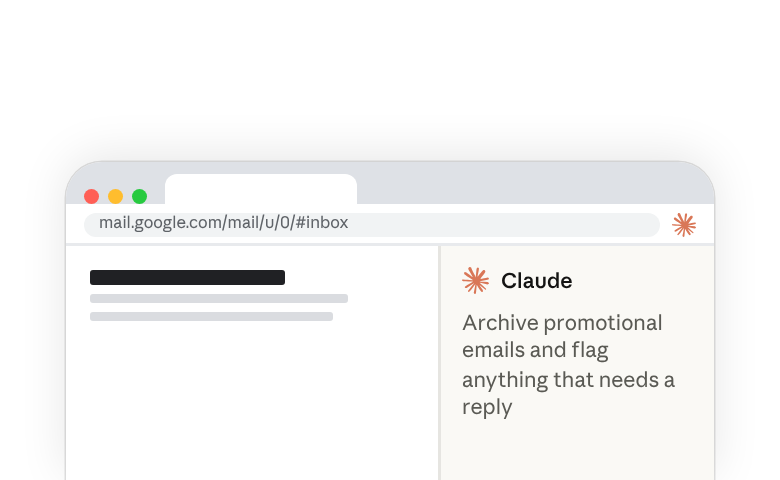
Claude can now work alongside you in your browser, in your context, on your actual work. Claude can see what you see, click on what needs clicking, and act as your collaborator, sharing the cognitive load of digital work. This guide will help you delegate the right tasks, build effective workflows, and maximize Claude's browser capabilities.
Claude in Chrome is available for paid plan users on the Chrome web browser.
How Claude understands your browser
The Chrome extension brings Claude directly into your web workflow. Claude operates in your browser with your permissions, your logins, and your context to take action in the sites you use every day.
- Visual Intelligence — Claude sees your browser and recognizes the interface the same way you do, through buttons, forms, navigation menus, and content areas.
- Contextual Understanding - Claude understands what buttons on the page do. It knows that "Archive" in Gmail removes emails from the inbox, that "Share" in documents grants others access, that form fields labeled "Email" expect email addresses.
- Tab Group Awareness — Claude can see and work across all tabs within the same tab group, providing larger context for its workflows. This means Claude can reference information and coordinate actions across multiple tabs.
- Persistent Work Across Tabs — Claude continues working when you switch tabs. Start a research task, jump to email to handle something urgent and Claude keeps gathering information as long as Chrome is open. Turn on notifications and Claude will ping you when it needs your permission or a task is complete.
What makes a good browser task
Not every browser activity suits delegation to the Claude browser extension. Here are a few examples to help you understand which tool to use to work more effectively:
Ideal for Claude in Chrome
- Taking action on specific websites like filling forms, clicking buttons, navigating interfaces, making changes to live pages
- Executing well-defined workflows using skills or shortcuts you've created, repeating proven processes
- Specific, targeted tasks or information gathering behind a login or using your permissions
Ideal for Claude apps
- Exploratory research when you don't know exactly where to look and need Claude to discover relevant sources
- Complex synthesis across many sources like creating reports that pull from dozens of articles, academic research requiring extensive citations
Better handled yourself
- One-time tasks that are faster to do than explain like single clicks, simple copy-paste, quick edits
- Highly subjective decisions requiring nuanced judgment
- Learning through doing tasks like exploring new tools or understanding workflows
Repeat effective workflows with skills and shortcuts
Once you create a successful workflow or find yourself repeating the same request to Claude, ask Claude to save it as a skill(opens in new tab) to follow next time. From then on, type / to select it and trigger the workflow instantly. If you still have the classic side panel, there are a few ways to save it as a shortcut instead.
Record a workflow to create a shortcut (classic side panel)
Teach Claude your task by demonstration. Click the cursor icon in the menu bar or type / in the chat bar and select ‘Record workflow’. Perform the task, clicking, typing, and narrating, while Claude watches your screen and listens to your voice. When you finish, Claude generates a shortcut: a name, a prompt describing what you did, and the starting URL.
Convert a conversation to a shortcut (classic side panel)
If you’ve completed a workflow across several chats, click Convert to task in the conversation header to save it as a repeatable shortcut.
Save a prompt as a shortcut (classic side panel)
If you've already sent a well-crafted prompt in chat, hover over it to reveal an icon that lets you save it directly as a shortcut.
Schedule recurring tasks
Once a workflow runs reliably, schedule it to run automatically. To do this, open Claude Desktop and set up a scheduled task(opens in new tab) with the workflow's prompt, plus a line asking Claude to use Claude in Chrome. Set the task to require your computer. It works only while your computer is awake, with Claude Desktop and Chrome open.
In the classic side panel, you can schedule a shortcut instead. When creating or editing a shortcut, toggle on Schedule. Choose the frequency, set the date and time, and select which model to use. Claude runs the workflow at the specified time and notifies you when it's done or needs input.
Good candidates for scheduling:
- Email cleanup(opens in new tab) to archive promotional emails and flag items needing response
- Data extraction(opens in new tab) that pulls weekly metrics from dashboards that don't offer exports
- Calendar planning(opens in new tab) for your upcoming week by flagging which meetings need prep and finding the details.
Additional workflows to try
Taking action:
Fill out this vendor application using information from our company info document. Pause before submitting for my review
Go through my mail inbox: archive emails from these senders [list], star anything mentioning deadlines, delete obvious spam. Tell me what you archived and what needs my attention.
Research tasks:
Visit [competitor website]. Check: latest blog posts, pricing page updates, careers section for new roles. Note anything new or changed. Summarize in a brief.
Search [food delivery site] for [cuisine type] restaurants. Filter by rating above 4 stars, check menus for [dietary preference]. Show me top 3 options with prices.
Communication prep:
For unread emails tagged "needs response": draft replies maintaining my usual tone. Don't send, just stage them for my review. Note which ones need more context from me.
For each person in this meeting invite: look up their professional background, note their role, identify their likely priorities, find any recent posts/articles. Create a pre-meeting brief.
Setting yourself up for success
Claude in your browser has limitations that are helpful to understand.
Permission confirmations
Visit our help center(opens in new tab) to learn more about which actions Claude will always ask permission for, regardless of your settings.
Features depend on your side panel
Your skills, plugins, and connectors work in the Cowork side panel. On Enterprise plans, you have the classic side panel until an owner enables the Cowork side panel(opens in new tab) for you.
Blocked sites
For safety, Claude cannot access certain types of high-risk websites. See Use Claude in Chrome safely(opens in new tab).
Ready to practice?
Claude in your browser represents an early step in our work on AI that can handle increasingly complex workflows and work seamlessly where you do. Try our interactive demo(opens in new tab) to build confidence before working with real tasks.