

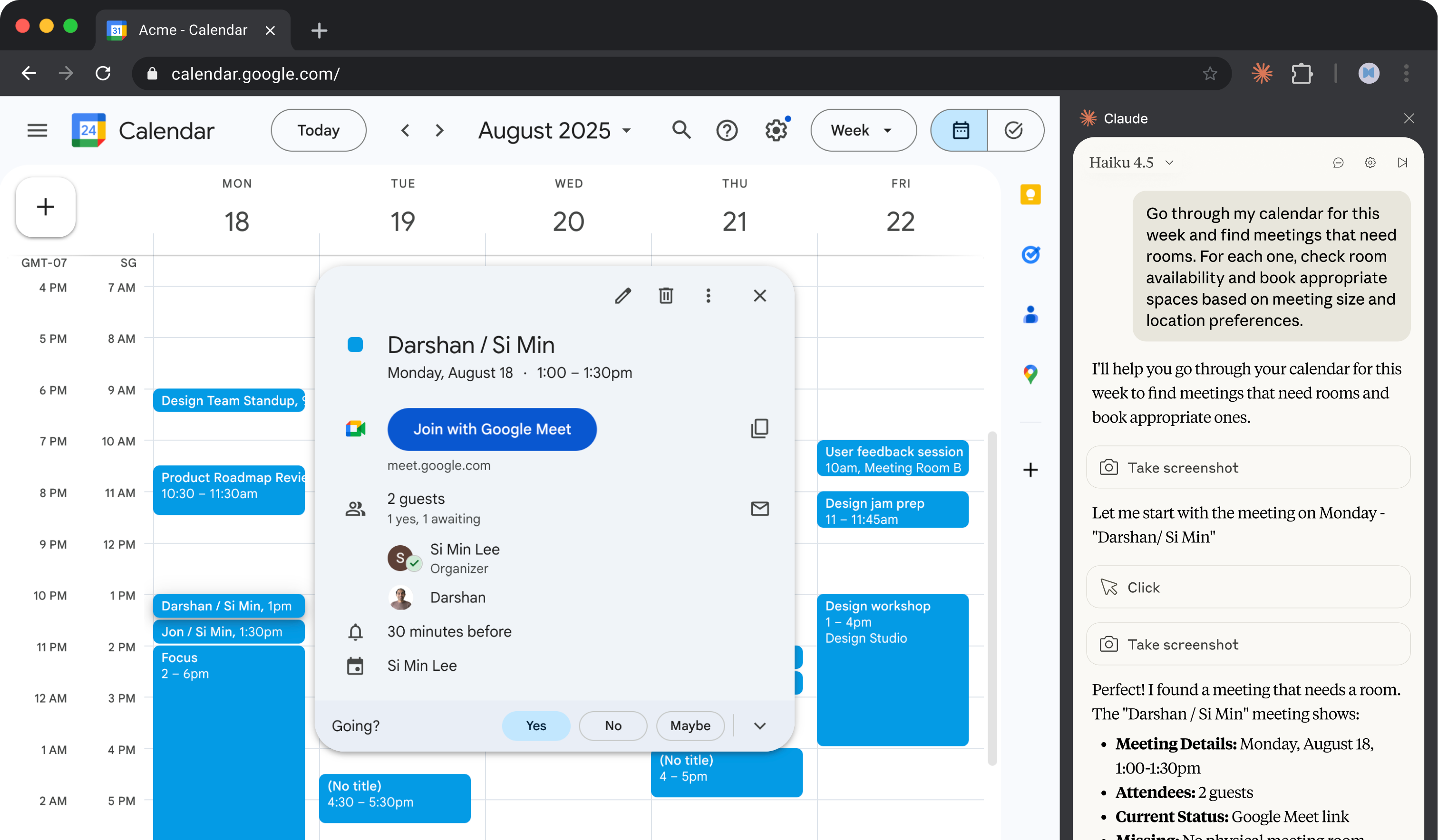
1. Describe the task
Claude in Chrome lets Claude interact directly with web pages—reading content, clicking, typing, and navigating sites on your behalf. For calendar prep, this means Claude can open your Google Calendar, check each meeting's attendee list, switch to Gmail to search for relevant threads with those people, and even book conference rooms.
Point Claude at your Google Calendar and tell it what to look for. It handles the cross-referencing between calendar and email, surfaces what needs your attention, and can fix the gaps.
Look at my calendar and help me get ready for tomorrow.
For each meeting:
- Tell me if it's internal or external (check the attendee domains)
- Find any recent email threads with those attendees about this topic
- Flag if the meeting is missing a room (for in-person) or a video link (for remote). If it is, assign one to the meeting.
- For external meetings, note anything I should review beforehand, like relevant docs attached to the meeting or related emails.
Give me a quick prep summary for the day, finding what needs my attention before I show up.
2. Give Claude context
Claude reads your calendar and email directly in Chrome. It cross-references attendees, threads, and meeting details to build context.
Required context
Required: Open Google Calendar showing tomorrow's date and Gmail in another tab. Claude navigates between them to gather context for each meeting. Make sure you're logged into both.
3. What Claude creates
Claude reviews each meeting and gives you a prep summary organized by what needs attention.
Tomorrow: Wednesday, December 18
You have 7 meetings. Here's what I found:
Needs Prep (External Meetings)
| Meeting | Time | Context |
|---|---|---|
| Acme Corp quarterly review | 10:00 AM | External (3 attendees from @acme.com). Found email thread from Dec 12 where they asked about API rate limits—might come up. No room booked. |
| Vendor intro - DataFlow | 2:00 PM | External (new contact). They sent a capabilities deck on Dec 15 you haven't opened. Zoom link is in the invite. |
Missing Logistics
| Meeting | Issue | Suggested Fix |
|---|---|---|
| Acme Corp quarterly review | No room | Book Sequoia (seats 6) — available |
| Team planning sync | No room | Book Birch (seats 8) — available |
| Design review | No video link | Found Meet link in thread with Sarah—add to invite? |
Ready to Go (No Action Needed)
- Standup — 9:00 AM, has Zoom link, recurring
- Marcus 1:1 — 11:30 AM, internal, has room (Aspen)
- End of day sync — 4:30 PM, internal, has Meet link
Quick Prep Summary
- Review the API rate limits thread before Acme call (I can pull the key points if helpful)
- Open the DataFlow deck before the 2pm—it's 12 slides
- Book rooms for Acme and Team planning
- Add Meet link to Design review
Want me to book those rooms and add the video link now?
4. Follow up prompts
Continue the conversation with Claude to refine, expand, or explore further.
Fix the logistics
Claude can book rooms and add links directly to calendar events. Once you've reviewed what needs fixing, approve the changes.
Yes, book those rooms and add the Meet link. Use a room on the 6th floor if available—that's where I sit.
Get deeper prep for the external meeting
For important calls, Claude can summarize recent correspondence with those contacts. This surfaces what's been discussed and what might come up.
For the Acme meeting, can you summarize the last few email threads I've had with them? I want to know what's been discussed recently and what they might bring up.
Make this a nightly routine
Claude can run tasks on a schedule. Save this as a skill, and schedule the prompt from step 1 for every evening so you start each morning with prep done. The first tip below shows how.
Can you save this as a skill? Call it "prep-tomorrow" and have it review my calendar, flag external meetings, and check for missing rooms or links.
5. Tricks, tips, and troubleshooting
Save and automate your workflow as a skill
Ask Claude to save a successful prompt as a skill(opens in new tab). Trigger the workflow by typing "/" and selecting it.
To run it on a schedule, open Claude Desktop and set up a scheduled task(opens in new tab) with the prompt from step 1, plus a line asking Claude to use Claude in Chrome. Set the task to require your computer. It works only while your computer is awake, with Claude Desktop and Chrome open.
If you still have the classic side panel, click the shortcut icon below a successful prompt to save it as a shortcut instead, which you can also schedule.
Navigating to new sites
Whether Claude asks for permission before visiting new sites depends on your permission mode(opens in new tab). You can grant site-level permissions for websites you trust, allowing Claude to work without repeated approvals on those specific domains.
Permissions before taking actions
Whether Claude asks for approval before clicking "send," "publish," "post," "submit," or similar action buttons depends on your request and your permission mode(opens in new tab). These actions include sending emails, posting to social media, submitting forms, or messaging others on your behalf. To review them first, say so in your prompt and consider switching to Manually approve (Ask before acting in the classic side panel).
6. Ready to try for yourself?
Install the Claude in Chrome extension and watch Claude scan tomorrow's meetings, find what you need to know, and fix what's missing—prep done before tomorrow arrives.