When building MCP servers, you need a way to test your functionality without connecting to a full application. The Python MCP SDK includes a built-in browser-based inspector that lets you debug and test your server in real-time.
Starting the Inspector
First, make sure your Python environment is activated (check your project's README for the exact command). The inspector also needs Node.js 22.19 or later. Then run the inspector with:
mcp dev mcp_server.pyThis starts the MCP Inspector and prints a local URL that starts with http://127.0.0.1:6274. If it doesn't open on its own, copy the full URL into your browser.
Using the Inspector Interface
These steps follow version 2 of the inspector. The video and the picture below show version 1, which looks different. Look for these key elements:
- A switch on your server's card, which connects to the server
- Tabs for Tools, Prompts, and Resources, which appear once you're connected
- A tools listing and testing panel
Turn on the switch first to start your server. You'll see its status change from "Disconnected" to "Connected".
Testing Your Tools
Open the Tools tab to see all available tools from your server. When you select a tool, you see its details and input fields.
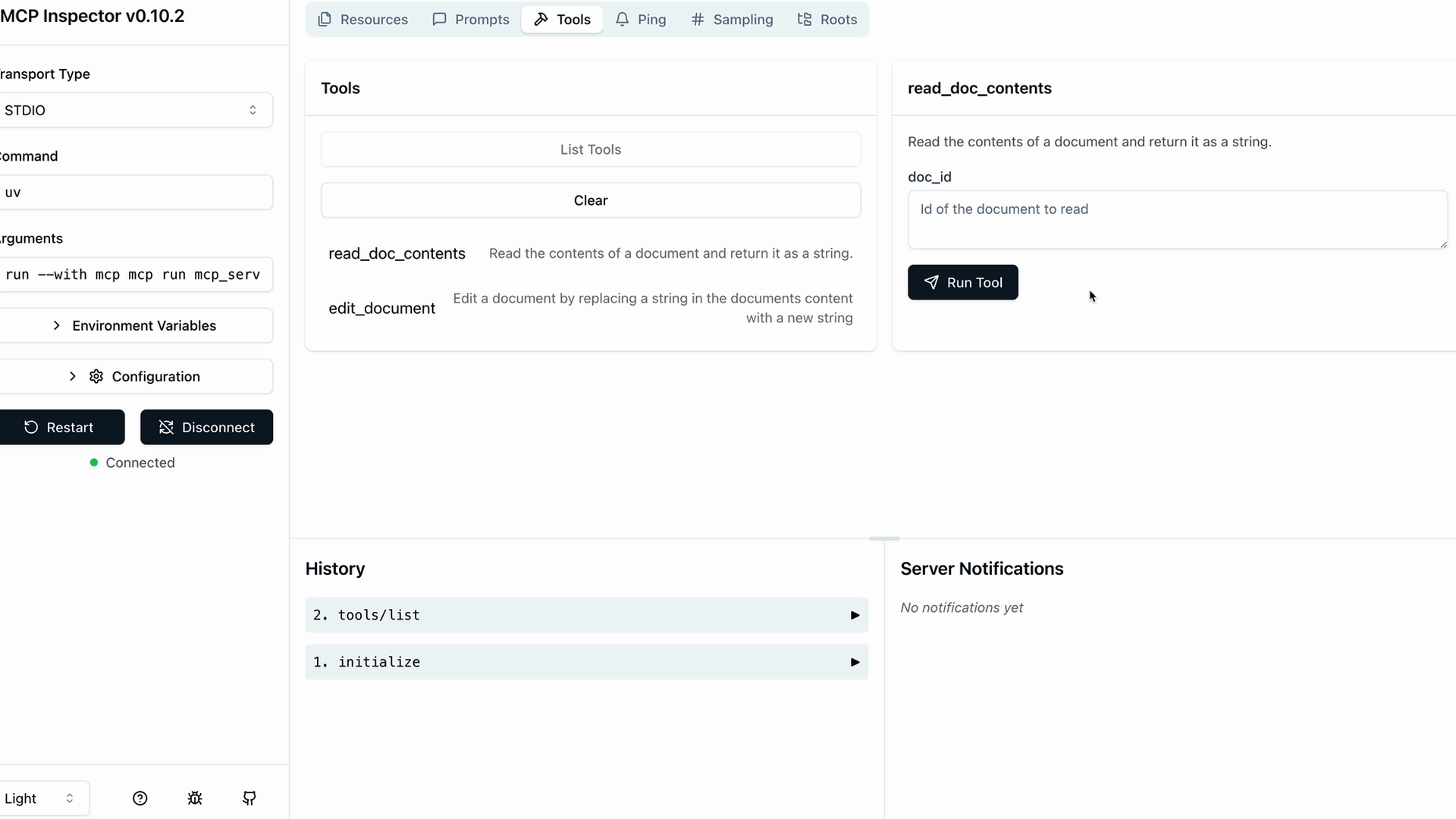
For example, to test a document reading tool:
- Select the
read_doc_contentstool - Enter a document ID (like "deposition.md")
- Click Execute Tool
- Check the results for success and expected output
The inspector shows both the success status and the actual returned data, making it easy to verify your tool works correctly.
Testing Tool Interactions
You can test multiple tools in sequence to verify complex workflows. For instance, after using an edit tool to modify a document, immediately test the read tool to confirm the changes were applied correctly.
The inspector maintains your server state between tool calls, so edits persist and you can verify the complete functionality of your MCP server.
Development Workflow
The MCP Inspector becomes an essential part of your development process. Instead of writing separate test scripts or connecting to full applications, you can:
- Quickly iterate on tool implementations
- Test edge cases and error conditions
- Verify tool interactions and state management
- Debug issues in real-time
This immediate feedback loop makes MCP server development much more efficient and helps catch issues early in the development process.