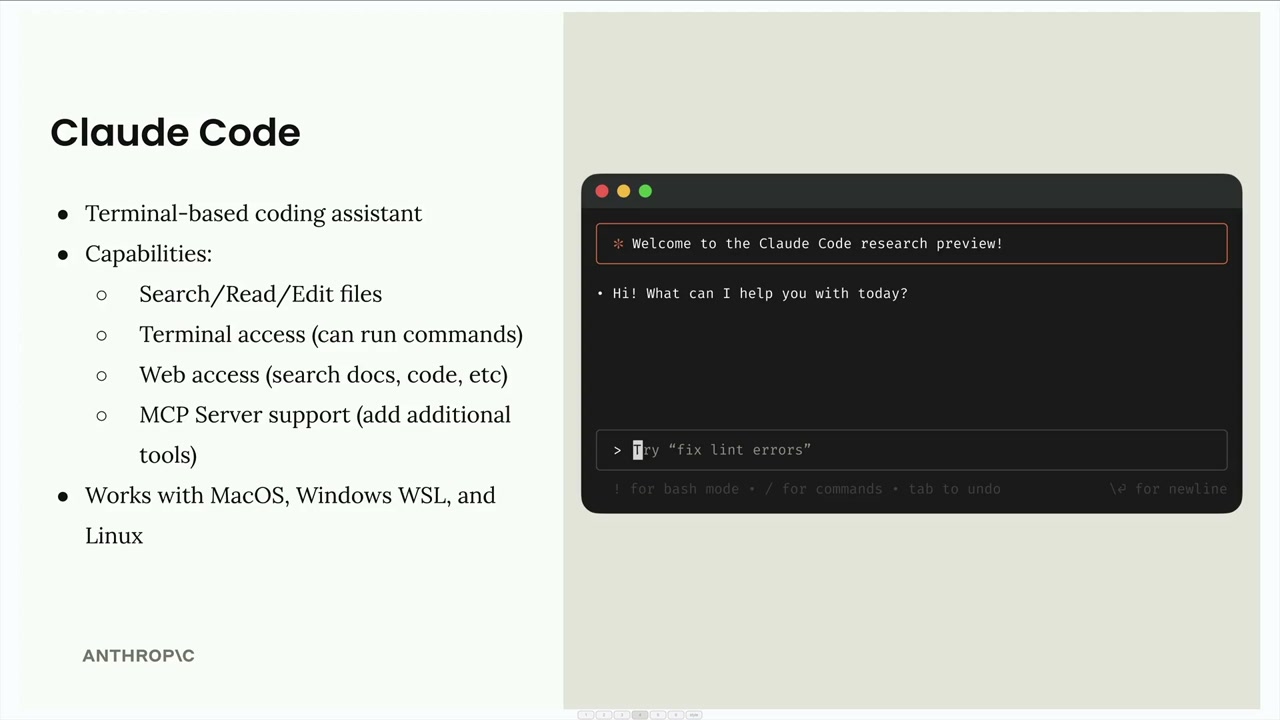
Claude Code is a terminal-based coding assistant that runs directly in your command line. Think of it as having Claude available right in your terminal to help with any coding task you're working on.
What Claude Code Can Do
Claude Code comes with a comprehensive set of tools to help with your development workflow:
- File operations - Search, read, and edit files in your project
- Terminal access - Run commands directly from the conversation
- Web access - Search documentation, fetch code examples, and more
- MCP Server support - Add additional tools by connecting MCP servers
The MCP integration is particularly powerful because it means you can extend Claude Code's capabilities by adding specialized tools for databases, APIs, or any other services you work with.
Claude Code works across macOS, Windows (natively or inside WSL), and Linux, so you can use it regardless of your development environment.
Installation
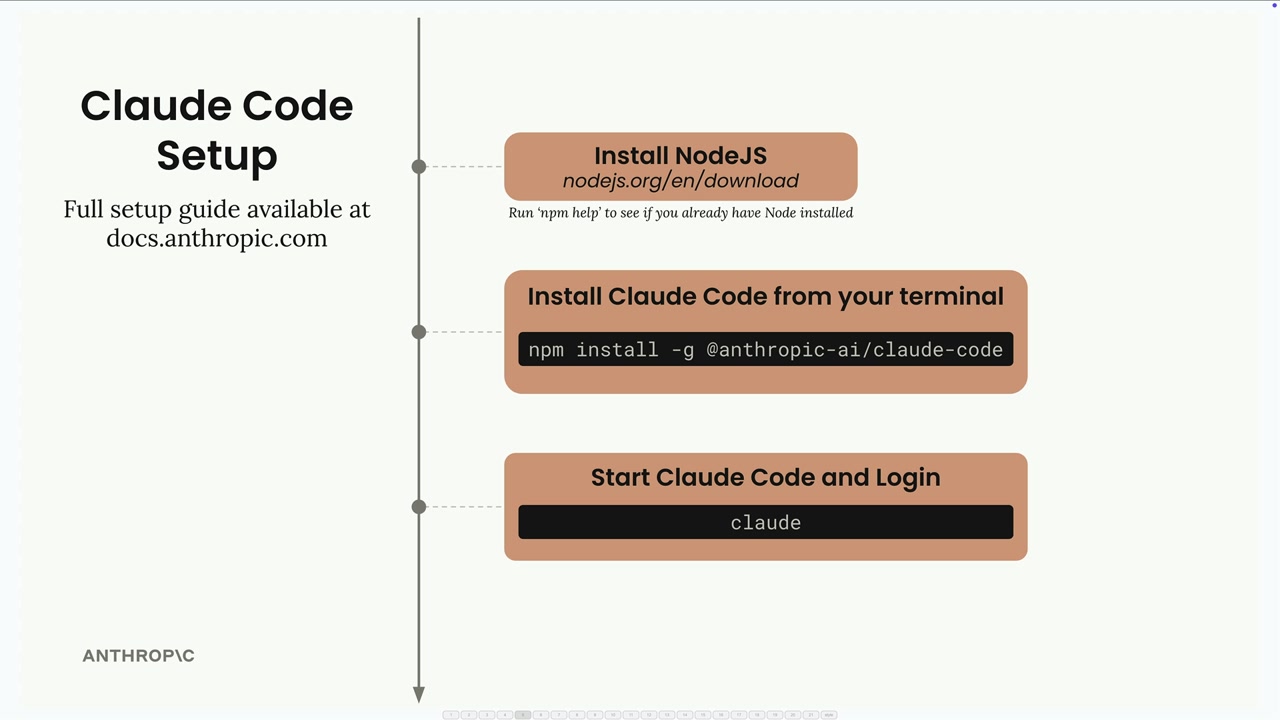
Getting Claude Code set up takes just two steps:
- Install Claude Code by following Step 1 of the Claude Code quickstart(opens in new tab)
- Start and login by running
claudein your terminal
When you run the claude command for the first time, it will prompt you to log in to your Anthropic account. The full setup guide is available at docs.anthropic.com if you need more detailed instructions.
Once you're set up, you'll have Claude available directly in your terminal, ready to help with any coding project or task you're working on.
You can also use Claude Code without a terminal. The Claude desktop app(opens in new tab) includes it in its Code tab, on a Pro, Max, Ultra, Team, or Enterprise plan. Later lessons in this course use the claude command, so install it in your terminal to follow along.