1. Describe the task
The print drops after hours and the stock is moving. You've got the model in a folder somewhere, the release open in one tab, the transcript in another, and a PM meeting in the morning.
In Cowork, Claude pulls the earnings release and call transcript through the S&P Global connector, reads your model from the attached folder, and tells you where your forecast was off — and which assumptions the transcript doesn't back up. You take that brief into Claude for Excel to make the cell changes, then open the deck in Claude for PowerPoint. The Excel-to-PowerPoint handoff carries the conversation, so Claude already knows which cells you changed when you build the page.
Claude handles the data pull and the cross-referencing; you make the call on what moves.
ACME just jumped 8% after hours — what's driving this? I need to update my model and build a page for tomorrow's PM meeting.
Steps:
- Pull the earnings release and call transcript from S&P
- Read my model in the folder and flag where my forecast was off
- Tell me which assumptions the transcript doesn't support
- Give me a brief I can take into Excel — cell refs, what to change, why
Show me the flags before I touch anything.
2. Give Claude context
Cowork pulls earnings data through the S&P Global connector and reads your model from the attached folder — that's where the cross-referencing happens. Cell edits happen in Claude for Excel with the workbook open, and the conversation carries into Claude for PowerPoint so the deck build picks up where you left off.
Required context
Attach your portfolio folder with the model. Enable the S&P Global connector. Have Claude for Excel and PowerPoint add-in installed — that's where the cell edits and slide builds happen.

3. What Claude creates
A brief you can act on: what moved the stock, where your forecast was off, and the exact cells to look at when you open the workbook.
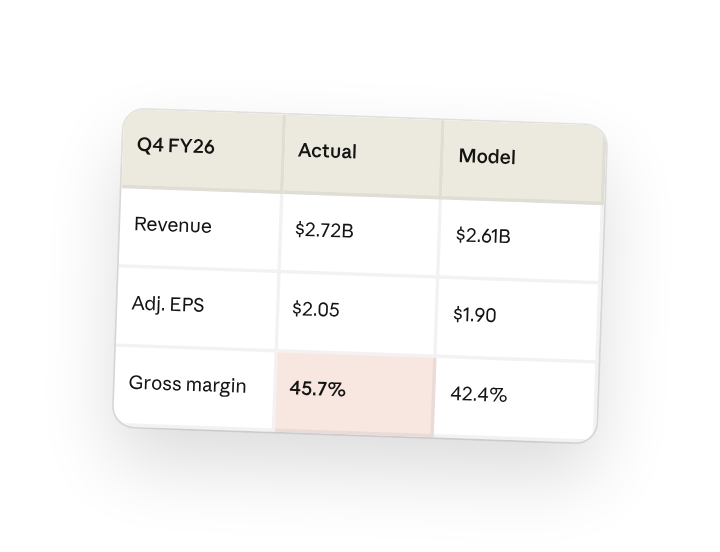
What moved the stock — Q4 FY26
- Revenue: $2.72B — beat $2.58B guide, $130M above your $2.61B forecast
- Adj. EPS: $2.05 — beat $1.90 Street
- Gross margin: 45.7% vs. your 42.4% implied — this is the driver
1 assumption to review
Assumptions!C7 — FY28E gross margin at 43.0%
Management didn't guide FY28 on the call. Baird asked about out-year margin durability; CFO said "2026 is an investment year, benefits build into 2027" — nothing past that. Your 60bp expansion in FY28E is your call, not theirs.
In your Excel workbook
With the Claude for Excel add-in installed, paste this into the sidebar with the workbook open:
Q4 print: rev $2.72B (beat), GM 45.7% vs my 42.4%.
Flag on Assumptions!C7 — FY28E GM at 43.0%, mgmt didn't guide past FY27. Walk me through C7, then build best/base/worst scenarios on the margin range.
Once you've signed off on the cells, open the deck in Claude for PowerPoint. The conversation carries from Excel, so the page build already knows what changed.
4. Follow up prompts
Continue the conversation with Claude to refine, expand, or explore further.
Compare to your forecast
In Cowork, ask where the actual landed against what you had.
oh ok how does the actual number compare to what I had in my model?
Check an assumption against the call
See if management said anything that should move a specific cell.
is my FY28 gross margin too aggressive? what did they actually say about out-year margins on the call
Build scenarios in the workbook
In Claude for Excel, once you've signed off on the assumptions.
ok keep the 43% — build me best/base/worst around the margin range in a new Scenarios tab
5. Tricks, tips, and troubleshooting
Ask Cowork for the Excel-ready brief
End your Cowork session by asking for a one-paragraph brief with the cell refs — that's what you paste into the Claude for Excel sidebar. Tighter than scrolling back through the chat.
Click the cell reference
When Claude flags Assumptions!C7 in the Excel sidebar, click it and Excel jumps to that cell. Check the number before you agree to change anything.
Excel to PowerPoint carries the conversation
When you open the deck in Claude for PowerPoint, it already knows what you changed in Excel. You're not re-explaining the print or the thesis — just say "build me the page."
Save it as a skill
Post-earnings is the same loop every quarter. Once the Cowork conversation works, save it as a skill so the next print starts one click in.
6. Ready to try for yourself?
Try it on your next earnings print. Attach your model folder in Cowork, ask what moved the stock, and review the flags before anything changes.