1. Describe the task
Grant Claude access to your desktop. In Cowork, it sees the same chaos you do: scattered screenshots, project folders with cryptic names, downloads you never moved. It reads through everything and sorts it into a clean folder structure.
Come back to a tidy desktop and a summary of what went where.
Please help organize my desktop. Evaluate all of the scattered files and organize based on the contents inside of them.
2. Give Claude context
Cowork is a workspace in Claude, available in the Claude Desktop(opens in new tab) app and, with remote sessions (in beta), on web and mobile. Run locally, it works directly with your local files: grant it access to your desktop and it navigates and moves files the same way you would, no uploading required. In a remote session, Cowork works in the cloud instead, so the files Claude uses leave your device for processing on Anthropic's servers.
Required context
To get started:
- Download Claude Desktop(opens in new tab) and start a Cowork session
- Grant desktop or folder access when prompted
- Mention anything Cowork shouldn't touch, like the folder for a project you're in the middle of
3. What Claude creates
Cowork scans your desktop, categorizes each file, and creates a folder structure. You'll see progress updates as it works and a summary of what changed.
I'd be happy to help organize your desktop! Let me first take a look at what's currently there.
Running command...
That's quite a cluttered desktop! I can see you have a mix of project folders, screenshots, photos, and documents scattered around. Let me sort through these.
Before: 180+ items scattered across your desktop
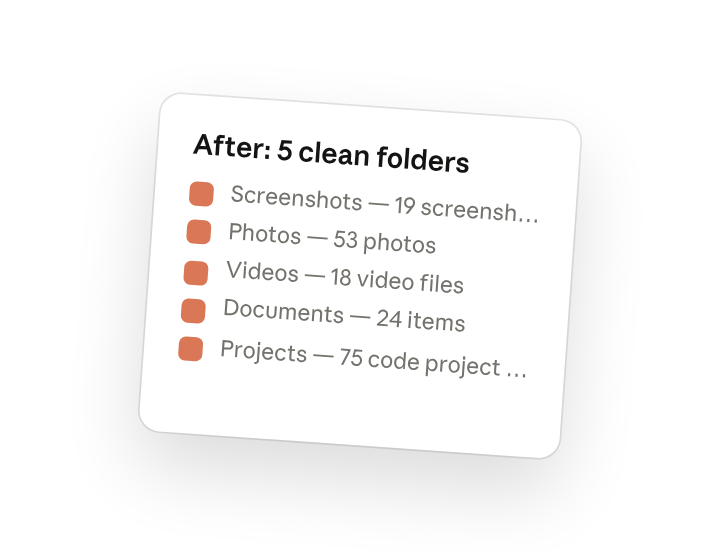
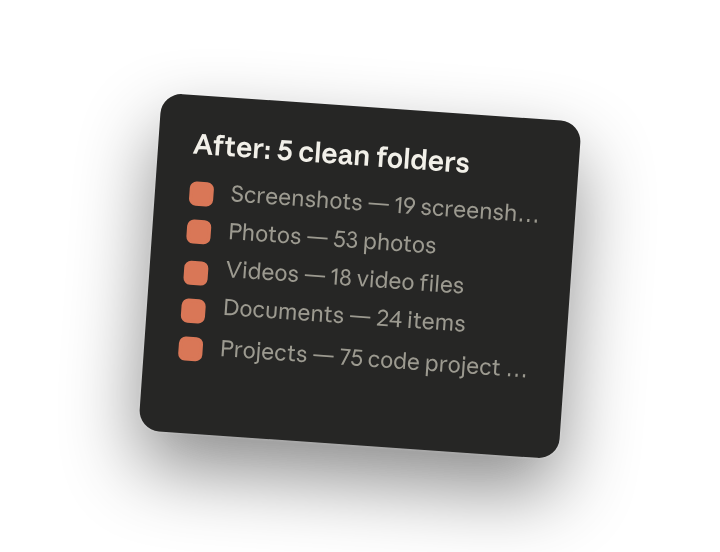
After: 5 clean folders
- Screenshots — 19 screenshots
- Photos — 53 photos
- Videos — 18 video files
- Documents — 24 items (notes, CSVs, forms)
- Projects — 75 code project folders
Cleaned up
- Removed 3 empty junk files
- Removed 4 empty folders
- Consolidated backup folders into Documents
Your desktop should now be much easier to navigate!
4. Follow up prompts
Continue the conversation with Claude to refine, expand, or explore further.
Reorganize by your own logic
Apply your own categories instead of the defaults. If you organize by client, by date, or by project phase, tell Cowork and it will restructure.
"Actually, split the Projects folder by language — Python projects in one folder, JavaScript in another, and everything else in misc."
Find something you lost
Cowork remembers what it moved and where. If you're hunting for a file in the new structure, ask.
"Where did that budget spreadsheet end up? I think it was called Q3_budget or something like that."
Create an ongoing system
Set up folder conventions you can maintain. One cleanup helps, but a system keeps things tidy going forward.
"Set up a Downloads folder too, and show me a simple system for where new files should go so this doesn't pile up again."
5. Tricks, tips, and troubleshooting
Local sessions keep your files on your computer
When Cowork organizes files right on your computer, it works locally and nothing gets uploaded anywhere. It can see and move your files on your machine, same as if you did it yourself. If you run Cowork tasks in the cloud instead, the files Claude uses leave your device and are processed on Anthropic's servers.
Start with one area if you're nervous
If granting full desktop access feels like too much, use "Work in a folder" to point Cowork at just your Downloads or Documents folder first. You can always expand access once you see how it works.
Be specific about what you want to keep
Cowork will ask before deleting anything that looks important, but if you know certain file types are always junk (like .tmp files or duplicate downloads), mention that upfront. What you get back depends on what you put in: the clearer your rules, the more Cowork can do without checking in. When the summary appears, give it a quick check before you call the job done: confirm the Cleaned up list only removed real junk, and open a file or two in the new folders to make sure they landed where you'd look for them. Match the check to the stakes: a skim is enough for screenshots, but a tax form or a contract deserves a closer look.
Start another task while this one runs
Organizing a full desktop takes a while. Open a new session from the sidebar for other work. You'll see a grey dot in the sidebar when this one needs attention.
6. Ready to try for yourself?
The next time your desktop gets cluttered, open Cowork and let it handle the sorting.