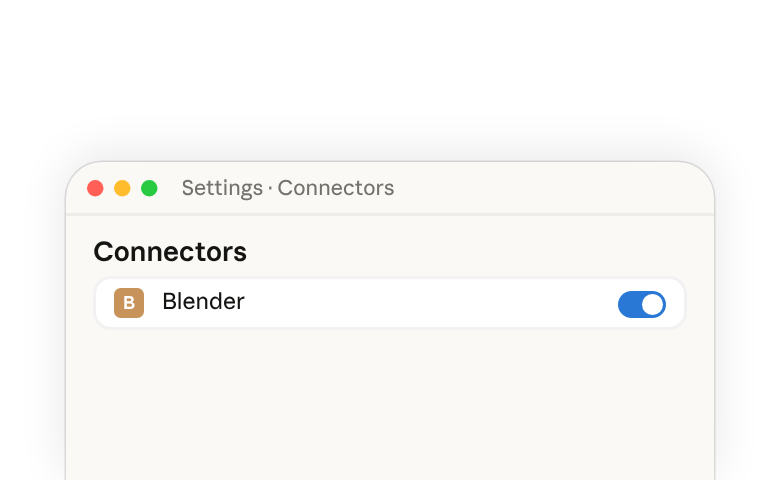
What this connector provides
The Blender connector gives Claude access to your open Blender scene through Blender's Python API. With it connected, you can ask Claude to read and explain a complex node or modifier setup, batch-apply changes across many objects, clean out unused data, and write Python that adds new tools to Blender's interface.
The connector was built by the Blender developers and released as part of Claude for Creative Work(opens in new tab).
Setting up the Blender connector
First, add the Blender connector in Claude Desktop, then install an add-on inside Blender so the two can communicate. After setting up once, start the connection from inside Blender each time you work.
Prerequisites
- Claude Desktop(opens in new tab) — any Claude plan, including Free
- Blender 4.2 or later — free at blender.org/download(opens in new tab)
Step 1: Add the connector in Claude Desktop
In Claude Desktop, go to Customize > Connectors, search for Blender, and select Add.
Step 2: Install the add-on in Blender
- Open the Blender MCP Server page(opens in new tab) in a browser alongside Blender.
- Drag the install link from that page into the Blender window. Blender will prompt you to add the lab extension repository; allow it.
- Drag the same link into Blender a second time. This installs the add-on. Blender will notify you in the status bar when updates are available.
Step 3: Start the connection
- Open your Blender project.
- Go to Edit > Preferences > Add-ons
- Find BlenderMCP tab and enable/ click 'start MCP server'
For more on installing connectors from the directory, see Browsing the Connectors Directory(opens in new tab).
The connector is built on the open Model Context Protocol and works with other MCP clients, including Claude Code. For setup outside Claude Desktop, see Blender's MCP server documentation(opens in new tab) and the Claude Code MCP guide(opens in new tab).
Example use cases
Clean up scene naming
Your scene has objects, collections, and materials with default or misleading names left over from earlier iterations.
Look at the open scene and rename the data blocks so each name matches what it contains. Flag any names that are misleading, like a collection called "rocks" that only contains pebble meshes.
Understand a complex setup you didn't build
You've opened a .blend file from the community and want to understand how its Geometry Nodes tree works before you change anything.
Walk through the Geometry Nodes modifier on the active object. Explain what each node group does in the order data flows through them, and write your notes as frame labels inside the node editor so the explanation is saved in the file.
Find what's using an object or material
You want to change or delete something but aren't sure what else in the file depends on it.
List everything in this file that uses the "Glass_Tinted" material, including objects, node groups, and Geometry Nodes setups. Tell me what would break if I removed it.
Find the heaviest objects in a scene
Render times are long and you want to know where the polygon budget is going relative to what's visible on screen.
For each mesh in the scene, report its polygon count alongside how large it appears in the active camera's final render. Sort by polygon count and flag anything that's heavy but small on screen.
Frequently asked questions
- Does the connector work on claude.ai in the browser? — No. The connector needs Blender running on the same machine as Claude, so it requires Claude Desktop.
- Does Claude edit my .blend file directly? — Claude operates on the open scene through Blender's Python API. Changes apply to your session and are written to disk when you save in Blender.
- Do I need to know Python? — No. You describe what you want and Claude writes and runs the Python. You can ask to see the code first if you want to review it or learn from it.