Claude(opens in new tab) runs full tasks across your files and tools. Customizing it once means every task after that starts with your systems connected and your team's process already in place. For the quickstart, see Get started in three steps(opens in new tab).
Level 1: Your context and tools
Connectors
Connectors(opens in new tab) plug Claude into the systems where your work already is — Slack, Salesforce(opens in new tab), Microsoft 365, Jira, your company's internal tools — giving it the context to understand a task and the ability to act on it. With a connector enabled, Claude can read your data and write back: update a ticket, draft a reply, post to a channel, save a file.
Add a connector(opens in new tab) for each tool you want Claude to use. Authorize once; Claude can then use that tool in any conversation.
Instructions
Instructions are standing rules you write for how Claude should work — tone, formatting, which sources to check first, conventions to follow. You set them at two levels, and your organization may add a third:
1. Instructions for Claude apply to every task you run. To edit them, open Settings and search for instructions. If a separate field named Global instructions is also listed, use that one for Cowork tasks.
2. Project instructions apply only inside that Project, on top of the ones above. Edit them on the Project's(opens in new tab) page, under Instructions.
3. Organization instructions: On Team and Enterprise plans, an owner of your organization may also set org-wide guidance that applies across your conversations, tasks, and Code alongside your own instructions.
Instructions apply to every task — they're like the background rules Claude follows regardless of what you're working on. A Skill is for one specific kind of task, loads only when relevant, and can be shared with teammates. General rules go in Instructions; a repeatable process goes in a Skill.
Level 2: Capture your process
Skills
Skills(opens in new tab) are instruction files for Claude to complete specific tasks in a repeatable way. Use skills to encode your personal best practices — as well as your team's expertise — into a repeatable set of instructions.
To use a skill(opens in new tab), name it directly (/skill-name) or describe the task in plain language. Claude can recognize when a skill applies and load it.
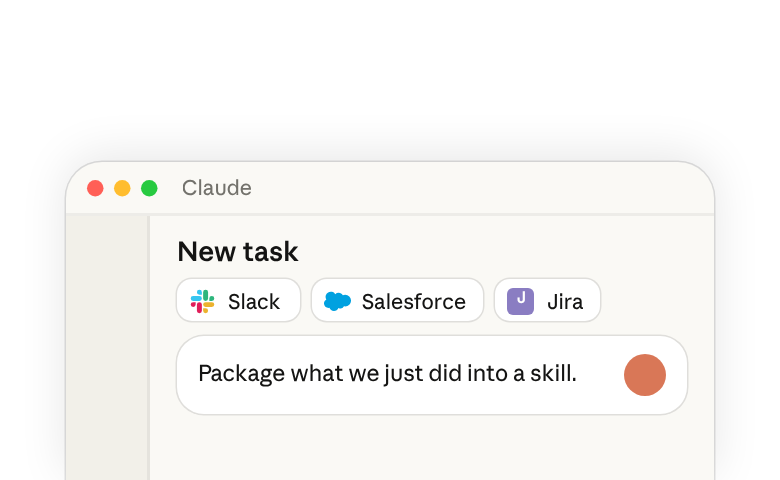
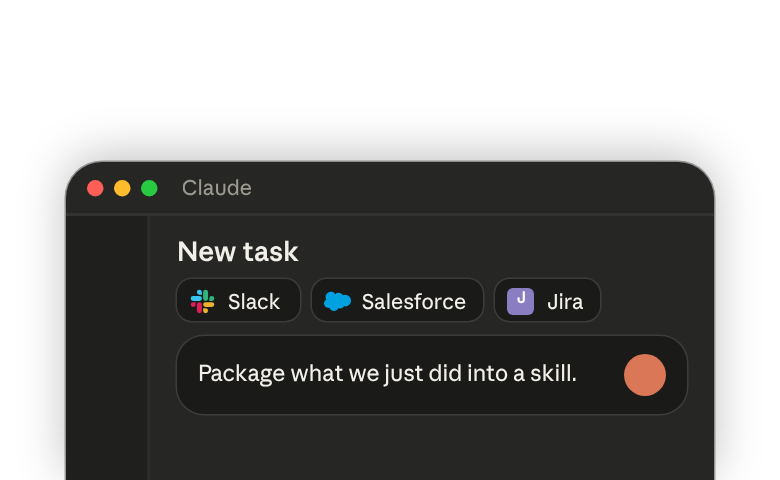
You can also create a skill(opens in new tab) with Claude in a prompt. Run through a workflow the way you normally would. At the end of the work, ask Claude:
The built-in skill-creator captures the steps, templates, and source locations so the next run is one prompt. Create your first skill(opens in new tab).
Level 3: Bundle and share
Plugins
Plugins(opens in new tab) bundle skills and connectors so teammates have what they need to get started.
Example plugins
Anthropic publishes ready-made plugins for common roles, each pairing the connectors that role relies on with skills for its core workflows:
- Sales(opens in new tab) — HubSpot, Close, Clay, ZoomInfo, and Fireflies (plus Slack), with skills for account research, call prep, pipeline reviews, and competitive battle cards.
- Product(opens in new tab) — Atlassian (Jira and Confluence), Linear, Notion, and Slack, with skills for feedback clustering, PRD writing, sprint updates, and competitive teardowns.
- Legal(opens in new tab) — Box, Egnyte, DocuSign, Slack, and Atlassian, with skills for contract review, NDA triage, signature requests, and vendor checks.
- Operations(opens in new tab) — Jira, Asana, and Notion, with skills for vendor reviews, process documentation, change requests, and capacity planning.
Browse more plugins(opens in new tab), or ask Claude to bundle your own connectors and skills into a custom plugin to share with your team. Ask Claude to find plugins for your role(opens in new tab).
Where to go from here
Most people start with connectors and Instructions, write a skill after running the same task a few times, and share it once a teammate asks how to set theirs up the same way. Plugins are how your admin distributes the org's standard set across roles.
Once you're set up, additional features can take you further:
- Scheduled tasks run a prompt at a set time, with access to everything you've connected — so a Skill you've written can run every weekday at 9am without you starting it. Ask Claude in any conversation to set one up. More on scheduled tasks(opens in new tab).
- Artifacts are dashboards, trackers, and comparison views that stay in the sidebar between sessions. Open one any time and ask Claude to refresh it with current data from your connectors. More on artifacts(opens in new tab).
For more on working with Claude:
- Building plugins from scratch(opens in new tab) — when the ready-made plugins don't have what you need.