A design system teaches Claude your brand. Once it's set up and shared with your organization, the decks, designs and prototypes your team makes with Claude can start from your colors, type and components.
1. What a design system is
A design system is a company's design decisions, written down once, in a form both people and software can reuse. In Claude, it has these main parts:
2. What changes when Claude has your design system
Claude can make a good deck or screen from a prompt with no setup. But it hasn't seen your brand, so it uses its own defaults, and the result doesn't look like your company.
With your design system, Claude uses your colors and type, and your team's real components if the design system includes them.
Claude uses your design system when it makes decks, designs and prototypes. Your colors, type styles and fonts apply to all of them, and designs and prototypes can also use your real components. To see which component Claude used in a design, select that part of the design. Its outline is a different color, and the Layers list shows its name.
3. Before you start
- Design systems are in beta on Pro, Max, Team and Enterprise plans. They aren't available on the Free plan.
- On Team and Enterprise plans, owners control the Design systems template(opens in new tab) under Organization settings > Artifacts. On Enterprise it starts switched off. If you don't see Design system in the places described below, that setting is the first thing to check.
- Anyone with access can create a design system, use it, and share it with specific people. Sharing one with the whole organization, or making it the default, takes an owner of your organization (section 7).
- If your team already has a design system in standalone Claude Design (claude.ai/design), you can bring it over instead of rebuilding it. See Migrate from standalone Claude Design below.
4. Create a design system
Start a new one
You can start a design system from the message box in any conversation, or from Settings.
From the message box: open the + menu, choose Design system, then New design system. You'll get two choices:
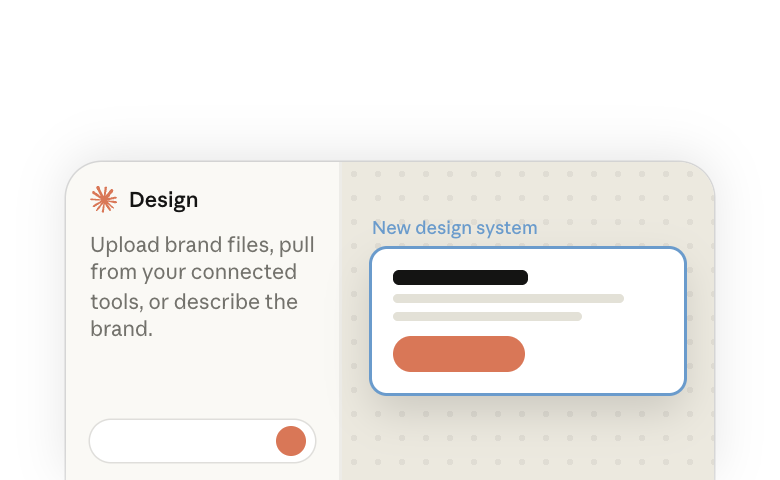
- Using Claude opens an empty design system beside a new conversation, where you can upload brand files, pull from your connected tools, or describe the brand.
- Using Claude Code is for a design system that already exists in a code repository. Claude Code reads your repo's tokens and components.
From Settings: Settings > Design systems lists the design systems you can use and has a New design system button.
A design system is itself an artifact. It's a page you can open, edit and share, and it appears on the Artifacts page with the rest of your work.
Pick a way to fill it in
A new design system opens as an empty page with the question Not sure where to start? and a card for each way to fill it in. Choose a card, and Claude starts in the conversation beside the page. With Upload brand files, you add your files first and then choose Create design system.
Sync from GitHub
Use this when your colors, type and components already exist in code. Claude asks which repository to read and what you want brought in. It reads the code, fills in the page, and is designed to leave your repository unchanged.
- Colors, type styles, spacing, corner radii, fonts, logos and docs are imported.
- Components are your choice. Claude lists the components it found and asks which to include. To bring them in, Claude has to run your project's build, so it asks you first.
- Tell Claude which folder has the interface code, so it has less to read than the whole repository.
- You can sync again later. Changed values update, new ones are added, and your usage notes, overview text, fonts and assets stay. If the code no longer defines a token, Claude lists it and asks before removing it.
Build from connectors
Use this when your brand is kept in a design tool, a shared drive or a wiki that you've connected to Claude. Claude checks which of your connectors has brand or design work in it, tells you which it found, and offers to build from it.
If you have nothing connected, Claude asks a few short questions about your brand and drafts from your answers.
Upload brand files
Use this when your brand is kept in files, such as logos, fonts, a guidelines PDF, a token file, or a few finished slides or screens. Claude reads the files you add and writes a first draft of the design system from them.
- Files that show your brand in use, such as finished decks and product screenshots, give Claude more to work from than a guidelines PDF alone.
- The first draft is deliberately small. Claude then asks whether that's enough or whether to take it further.
- Claude is designed to ask before it fills in a value your files don't show.
Migrate from standalone Claude Design
If your team built design systems in standalone Claude Design (claude.ai/design), you can bring them into Claude instead of rebuilding them. Until they're migrated, they carry a Standalone tag in Settings > Design systems, and Claude can't use them in conversations.
One migration covers your whole organization, so one person does it for everyone, and that person doesn't need to be an owner. It starts from the Artifacts page. The originals don't change.
Each migrated design system has one step left. The owner of the design system opens it, selects Finish the migration and sends the request to Claude. If a message says the request was copied, paste it into a conversation with Claude and send it. Claude then reorganizes the files so you can preview each section and edit it on the page. Until then, you can still ask Claude to make changes.
The standalone version is closing. For the date, what gets shared, and what to do when a design system can't be migrated, see the Help Center article on migrating(opens in new tab).
5. Look through the page, and leave notes for Claude
The design system's page is where your team reviews and edits it, and where you leave usage notes that tell Claude how to use it.
The page
You can edit the overview text, token values, notes, fonts and assets right on the page. To add a theme or change a component's code, ask Claude in the conversation beside the page.
Usage notes
As you review your design system, you can leave usage notes for Claude. A note tells Claude how to use a color, a type style or a component, and when not to. Claude reads a component's note before it builds with that component.
6. How Claude uses it when it builds
For each request, Claude reads the overview first, then only the parts of your design system that the task needs.
If your organization has a default design system, Claude uses it without asking. If it has design systems but no default, Claude asks which one to use.
7. Share it with your organization
At first, only you can use a new design system. You can share it with specific people, and an owner of your organization can share it with everyone and make it the default.
Step by step
- Try it yourself first: your design system is in your + > Design system menu as soon as it has content saved in it. Ask for an ordinary deck, and say nothing about the brand. If the deck looks like your company, the design system is working.
- Share it with the people who should review it: select Share at the top of the design system's page and invite them. It appears in their + > Design system menu under Shared with you. Give edit access to anyone who should be able to change it.
- Have an owner of your organization share it with everyone: first invite them from Share and give them Owner access. In Share, they then set the audience to Anyone at [your organization] and confirm. After that, the design system is in every teammate's menu.
- Make it the default, if you want one: once it's shared with everyone, an owner of your organization turns on Default design system in Share, or chooses Set as default next to it in Settings > Design systems. There is one default per organization, and setting a new one replaces the old.
See all your design systems in one place
Settings > Design systems lists your own design systems, the ones shared with you and the ones shared with your organization. Manage design systems, at the foot of the + > Design system menu, opens the same page.
- The Usable by column says who can use each one, and the default carries a Default badge.
- Design systems still in standalone Claude Design carry a Standalone tag.
- You can open, share, rename or delete your own from the row menu.
Owners of Team and Enterprise organizations also see every design system shared with the organization under Organization settings > Artifacts, and can set or remove the default there.
8. Use it day to day
What your teammates see
Once a design system is shared with everyone, it's in every teammate's + > Design system menu. Once it's the default, it's already selected when they start a deck or a design.
The default doesn't replace a design system you've already picked on the same device. To use none in a conversation, clear every checkbox, and the chip under the message box reads No design system.
Keeping it current
You can update your design system in a few ways:
- Small changes: edit the page. Values, overview text and notes save as you go.
- Larger changes: ask Claude in the conversation beside the page. This is how you add a theme or change a component.
- A design system that came from code: change the code, then sync from GitHub again. Your notes and page edits are kept.
- Decks and designs you've already made: each one keeps its own copy of the design system from when it was made. Ask Claude to update it.
Troubleshooting
| What you see | What to do |
|---|---|
| The result is close to your brand but not right | Give Claude more examples of your brand. Add finished decks or product screenshots, or sync from your code. Then tell Claude exactly what to change. |
| Claude keeps misusing one color or component | Write the rule in its usage note. |
| Claude didn't use your design system | Look at the chip under the message box. If it reads No design system, select your design system in + > Design system. If your organization has no default, ask an owner of your organization to set one. |
| Your fonts were replaced by other fonts | Upload the font files in the Typography section. Claude can't use a font that is named on the page but has no file. |
| Anyone at [your organization] or Default design system is grayed out in Share | Both are for owners of your organization. Share the design system with an owner, give them Owner access, and ask them to set it. |
| "This design system can't be the default yet" | An owner of your organization shares it with everyone first, then sets the default. |
| Design system isn't in the + menu | On Team and Enterprise plans, an owner turns the template on(opens in new tab) under Organization settings > Artifacts. On Enterprise, an owner may also have limited design systems to some groups(opens in new tab). On the Free plan, design systems aren't available. |
| A design system from claude.ai/design has a Standalone tag and isn't in the + menu | It hasn't been migrated yet. See Migrate from standalone Claude Design. |
| You can't find where to start the migration | Someone in your organization may have run it already. Check Settings > Design systems to see what came over. If design systems are off for your organization, an owner turns them on under Organization settings > Artifacts. The Help Center article on migrating(opens in new tab) covers the rest. |
More resources
- Making slides and presentations with Claude(opens in new tab) and Using Claude for prototypes and UX(opens in new tab) show the design system in use.
- Collaborate with your team in Claude artifacts(opens in new tab) for sharing and editing decks and designs.
- Visit the Help Center for more on design systems in Claude Design(opens in new tab) and migrating from standalone Claude Design(opens in new tab). Owners can find the settings for their organization in the Artifacts admin guide(opens in new tab).