How to use this kit
This kit gives Claude Enterprise admins what they need to tell employees about the unified Claude experience and roll it out in stages. Copy any piece, fill in the bracketed blanks, and send it under your own name.
Unified Claude isn't yet available for organizations using zero data retention for Claude Code, the HIPAA-ready configuration, or customer-managed encryption keys, so this kit doesn't apply to them.
| Piece | Who it's for | When to use it |
|---|---|---|
| Announcement template | All employees | A few days before each group gets access |
| What's changing for you | All employees | Linked from the announcement |
| Quick-start | All employees | The first week each group has access |
| End-user FAQ | All employees | Linked from the announcement and your intranet |
| Rollout plan template | Admins and IT | When you plan your pilot and org-wide rollout |
| IT helpdesk cheat sheet | Your internal support team | Before the pilot starts |
Announcement template
Send this a few days before each group gets access. There is an email version and a shorter version for your internal messaging tool.
Subject: Chat and Cowork are becoming one Claude on [date]
Body:
Hi team,
Starting [date], Claude will work a little differently. Chat and Cowork are coming together into one experience, so you no longer pick between them before you start.
What changes
- You ask in one place. Claude decides whether it's a quick answer or a bigger task.
- For bigger tasks, Claude does the work and gives you a finished document, analysis or deck to review.
- Tasks run in the cloud, so you can start on your computer and pick up on web or mobile.
What stays the same
- Your chats, projects, connectors and skills carry over.
- A quick question still gets a quick answer.
When
[Pilot group or team] starts on [date]. Everyone else follows on [date].
What to do
There is nothing to install. If you don't see the new experience on your start date, refresh the Claude app. Then try handing Claude one task you'd normally build yourself this week.
Read [What's changing for you] and the [FAQ] for more. Questions go to [messaging channel or helpdesk contact].
[Your name]
Short internal message
Heads up: starting [date], chat and Cowork in Claude become one experience. You ask in one place, and Claude decides whether it's a quick answer or a bigger task it should run for you. Your chats, projects, connectors and skills carry over, and there's nothing to install. Details: [link to What's changing for you]. Questions: [channel]
What's changing for you
Chat and Cowork are now one Claude. You start every conversation the same way, and Claude moves into a bigger task only when the work needs it.
What changes
- You don't choose first. There is no separate chat and Cowork to pick between. Ask for what you need.
- Claude can do the whole task. When a request needs code or files, Claude does the work and returns a finished document, analysis or deck for you to review.
- Tasks continue across devices. Tasks run in the cloud, so you can start on desktop and pick up on web or mobile.
What stays the same
- A quick question still gets a quick answer.
- Your chats, projects and session history carry over.
- Most scheduled tasks keep running with no changes. Tasks that use files or tools on your computer need that computer on and the Claude desktop app open.
- Your connectors, skills and plugins carry over. Some local tools need the Claude desktop app open on your computer.
- Local folders and applications stay available through the Claude desktop app, if your organization allows it.
Staying in control
By default, Claude works on files and code in its cloud workspace on its own and asks before most actions outside it. You review what Claude makes before you use or share it.
Quick-start
Five things to try in your first week. Each one takes a few minutes.
- Ask a quick question. Use Claude the way you do today. A quick question still gets a quick answer.
- Hand over a finished piece of work. Pick a report or deck you'd normally build yourself and ask Claude for the whole thing.
- Step away and come back. Start a task on your computer, then check on it from web or mobile.
- Ask for changes. Review what Claude made and ask for edits in the same conversation.
- Make it repeat. Ask Claude to run the same task on a schedule, if your organization has turned on scheduled tasks for you.
Starter prompts by team
| Team | Try this |
|---|---|
| Sales | "Review these call notes and draft a follow-up email and a one-page account summary." |
| Finance | "Analyze this spreadsheet, flag the three biggest variances from last quarter, and put the findings in a short memo." |
| HR | "Turn this policy document into a one-page FAQ for new hires." |
| Marketing | "Create a weekly report from these results, flag anything that slipped, and put the highlights in five slides." |
| Engineering | "Read this incident timeline and write a postmortem draft with open questions at the end." |
Use cases by team on Claude Academy: Sales(opens in new tab), Finance(opens in new tab), HR(opens in new tab), Marketing(opens in new tab) and Engineering(opens in new tab).
Admins: swap in prompts that use your own connectors and files. People adopt faster when the examples look like their work.
End-user FAQ
Where did Cowork go?
It's part of every conversation now. There is no separate place to open. Start a conversation and ask for what you need.
Do I need to tell Claude when something is a task?
No. Claude decides whether your request needs a quick answer or a bigger task.
Where are my old chats and Cowork sessions?
They carry over. Sessions you ran locally stay on that computer.
Are quick questions slower now?
A quick question still gets a quick answer.
Will Claude take action without asking me?
By default, Claude works on files and code in its cloud workspace on its own and asks before most actions outside it. Your organization decides whether you can change that.
Can Claude still work with files on my computer?
Yes, through the Claude desktop app, if your organization allows it.
Can I check on a task from my phone?
Yes. Tasks run in the cloud, so you can start on desktop and pick up on web or mobile, if your organization allows it.
Do my connectors and skills still work?
Yes. Your connectors, skills and plugins carry over. Some local tools need the Claude desktop app open on your computer.
Do my scheduled tasks still run?
Most scheduled tasks keep running with no changes. Tasks that use files or tools on your computer need that computer on and the Claude desktop app open.
Rollout plan template
Plan backward from the default-on date and cutoff in your general availability email. If you take no action, unified Claude turns on by default, so select Keep disabled in Organization settings > Capabilities if your review won't be finished. The security review takes the longest, so it starts first. We recommend piloting with a small test group during the review, then turning it on for the whole organization.
| Stage | What to do |
|---|---|
| 1. Security review | Share the admin setup guide(opens in new tab) and security best practices(opens in new tab) with IT, security and procurement. A review of Cowork in the cloud that is already underway carries over. |
| 2. Check settings | Review network egress, connectors, sharing, remote control, approvals and Efficient mode. Confirm Chat and Cloud code execution and file creation are on. |
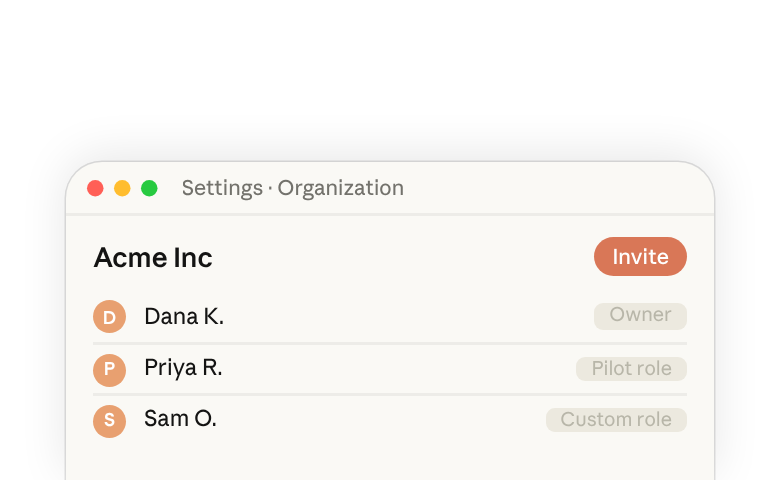
| 3. Pilot during review | Where your security team can accept the risk, start a small test group while the review runs. Move everyone outside the pilot, except Owners and Admins, to a custom role that keeps their current access but not Chat and Cowork unified, give it to the pilot role, then turn it on in Organization settings > Capabilities. Pilot members removed later keep moved chats as read-only. Brief your helpdesk first, then use feedback to adjust settings and starter prompts. |
| 4. Whole organization | Once the security review clears, give Chat and Cowork unified to the remaining roles. Send the announcement a few days before. |
Before the pilot and org-wide rollout
- Send the announcement with the start date and where to ask questions
- Link What's changing for you, the Quick-start and the FAQ
- Give your helpdesk the cheat sheet
- Name one person on each team who collects feedback
IT helpdesk cheat sheet
The ten questions your internal support team is most likely to get, each with the setting to check. Settings are in Organization settings unless noted. Full detail is in the admin setup guide(opens in new tab).
| An employee says | What to check |
|---|---|
| "I don't see the new experience." | Ask them to refresh the Claude app. Then check that Chat and Cowork unified is on for the organization and for their role. |
| "I can't find Cowork." | Nothing is missing. Cowork is part of every conversation now. Point them to What's changing for you. |
| "Claude can't reach a website during a task." | Allow network egress, under Capabilities > Code execution. It is off by default for Enterprise. |
| "A connector is blocked, or asks for approval every time." | Connector policies, and whether Always allow for connector tools is on. |
| "Claude keeps asking me to approve actions." | Whether Automatically approve mode is allowed. |
| "I can't share a conversation." | A conversation that used its sandbox can be shared only when Share chats and Share cloud sessions are both on. |
| "I can't use my computer from the web or mobile." | Remote control, and whether Require Trusted Devices needs them to verify the device. Check the org setting and the member's role. |
| "I can't create a scheduled task." | Scheduled tasks. Check the org setting and the member's role. |
| "I can't pick the model I used before." | Efficient mode and your model allowlist, on the Models page or the role's Models tab. |
| "I can't add a local folder or MCP server." | Your device policy for the Claude desktop app, in your device management tool. |