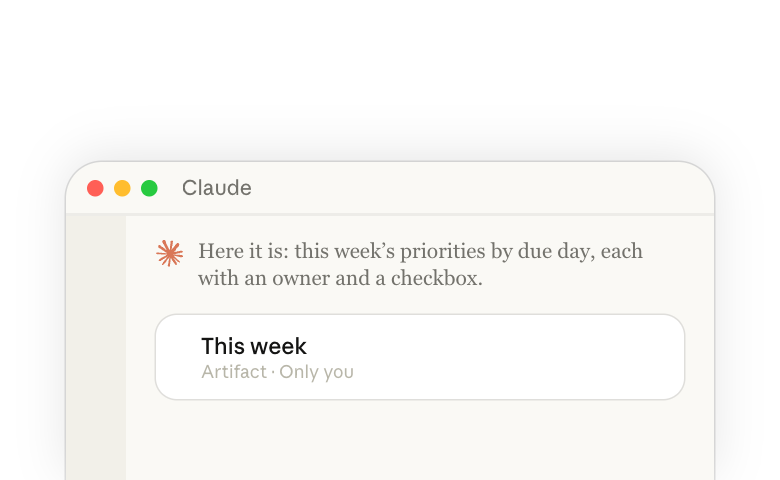
Describe an interactive page your work needs, like a tracker, a quiz, or a planner, and Claude builds a working first version that opens beside your conversation. The page Claude builds this way, from scratch for your request, is a custom artifact. Each artifact also has its own link, so you can share it with your team and work in it together.
From there, ask Claude to:
- Change it, in the conversation or in a comment you leave on the page.
- Save what people enter, so your team works together in one artifact.
- Use your connected tools, like Google Calendar or Asana, to bring live information into the artifact.
- Add Claude to the artifact itself, so people can use Claude inside it.
What are custom artifacts and when would you use them?
Claude has named kinds of artifacts for common work, like documents, presentations, and designs. When your work fits none of them, ask for a custom artifact, such as an interactive tool or tracker. You can specify which kind you want in your request, or describe the work and Claude picks what fits the task.
| Kind of artifact | Best for |
|---|---|
| Claude Docs | A document that you, your teammates, and Claude all write in at the same time |
| Claude Slides(opens in new tab) | A deck built from your conversation, to edit slide by slide and present from inside Claude |
| Claude Design(opens in new tab) | A design or clickable prototype in your brand's colors and type |
| Claude Dashboards (beta, paid plans) | Charts and numbers from your data, for quick, exploratory questions |
| Claude Motion(opens in new tab) (beta, Team and Enterprise) | An animated explainer, chart, or product walkthrough |
| Custom artifact | An interactive page built for your request, like a tracker or an intake form, that can save what people enter |
Collaborate with your team in Claude artifacts(opens in new tab) shows each kind.
Create your first custom artifact
Start in any conversation with what you want to do, then build on what Claude gives you.
- Describe what you want to do. Say what it's for and, if a problem is behind it, what gets in the way, like "I want one place to see which launch tasks are behind, because right now they're spread across three spreadsheets."
- Let Claude interview you. Claude often asks a few questions first, such as who will use it and what it needs to show. If it doesn't, ask it to.
- Ask Claude to build it. When the idea is clear, ask for it directly, for example "Build this as an artifact."
The artifact opens beside your conversation. It's also saved on the Artifacts page in the sidebar, so you can open it again later on the web, the desktop app, or the mobile app.
Customize your artifact further for you and your team
Once Claude has built your artifact, you can improve or add additional features just by asking Claude. Saving entries and using connected tools need a paid plan(opens in new tab).
Change what Claude built
- A change to the whole artifact: Ask in the conversation, for example "Group the priorities by owner instead of by day."
- A change to one part: Click Comment, click the spot, write your request, and keep Send to Claude checked.
- Before a big change: Choose Duplicate from the artifact's title menu, so you can compare the two or go back.
Save what people enter
Saved entries are still there the next time anyone opens the artifact, even after Claude changes it.
- To save entries within your artifact, tell Claude what the artifact should keep.
- Each artifact has a storage limit, which the Help Center(opens in new tab) lists.
Use your connected tools in the artifact
An artifact can read from tools you've connected, like Asana, Google Calendar, or Slack, and make changes in them.
- To connect a tool to your Claude account, like your calendar, email, or drive, see connecting your tools to Claude(opens in new tab).
- Each person connects their own tools(opens in new tab), even on a shared artifact. The artifact uses their connections, not yours, so if someone doesn't have access to a source, that part shows an error instead of your data.
Add Claude to your artifact
Ask in the conversation to add Claude to your artifact, and people can use Claude inside it, with nothing to set up. Each person's use counts toward their own plan, like any other message.
Download and upload files in the artifact
An artifact can give people a file to save, like a spreadsheet or PDF of the entries. For example, try asking Claude, "Add a button that downloads this week's priorities as a spreadsheet."
People in your organization who can edit the artifact can also upload files to it, such as images, PDFs, or spreadsheets saved as CSV.
Ask Claude about your team's entries
Once an artifact saves entries, you can ask Claude about them in the conversation, or ask Claude to change the saved entries.
- For example, before a meeting, ask "Summarize what the team added this week."
- To fill a new tracker, attach a spreadsheet and ask "Load these forty rows into the tracker."
- At the start of a month, ask "Clear last month's entries."
Share your artifact with your team
Share your artifact with your team, and you can all view and edit the same one.
- Click Share and add your teammates by email, or share it with everyone in your organization and send them the link.
- To let teammates in your organization add and change the shared entries alongside you, give them more access in Share. People you add can comment at first.
- To see each other's changes as they happen, without reloading, ask Claude.
- People you share with see the artifact and its comments, but not your conversation with Claude.
To learn more, see Share artifacts(opens in new tab) in the Help Center.
Inspiration for your first custom artifact
These combine saved entries, files, and Claude in different ways.
Reviewers and checkers: Build a submission portal where Claude checks each draft against your voice and writing standards.
Content tools: Build a page where Claude transforms your update for different channels.
Analysis and decision support: Give Claude your context, like your files, and see your options laid out side by side.
Use your artifact outside Claude
When the work has to leave Claude, export your artifact as a file, or build it as software you run yourself.
- As an HTML file: Choose Export in the artifact's title menu and pick HTML. In the exported copy, the parts that save entries, use Claude, or use connected tools stop working.
- As software you run yourself: Ask Claude for its code and build the full version in Claude Code.
More resources
- Read Collaborate with your team in Claude artifacts(opens in new tab) for docs, decks, designs, dashboards, and animations.
- To make the same kind of artifact again for each project, see how to create a skill through conversation(opens in new tab).
- Read connecting your tools to Claude(opens in new tab) to set up the tools your artifacts use.
- Visit the Help Center for more on artifacts(opens in new tab) and sharing(opens in new tab).
- Artifacts you made in a chat before September 16, 2026 still work, and their published links still open. The Help Center explains how to share or unpublish one(opens in new tab).